
How to embed a Livid video on Framer
Livid videos work on Framer through the Embed component. Framer's native Video component only accepts uploaded MP4 and WebM files, so it will not take a Livid link. Use Embed instead and your video plays exactly as it does on Livid, with the same player, controls and options.
Before you start
Your video must not be set to Private . If it is, the embed code and embed link are not available.
Open the sharing overlay from the Sharing button (top right of the video page) or from the visibility status below the video, then set the video to any option other than Private .
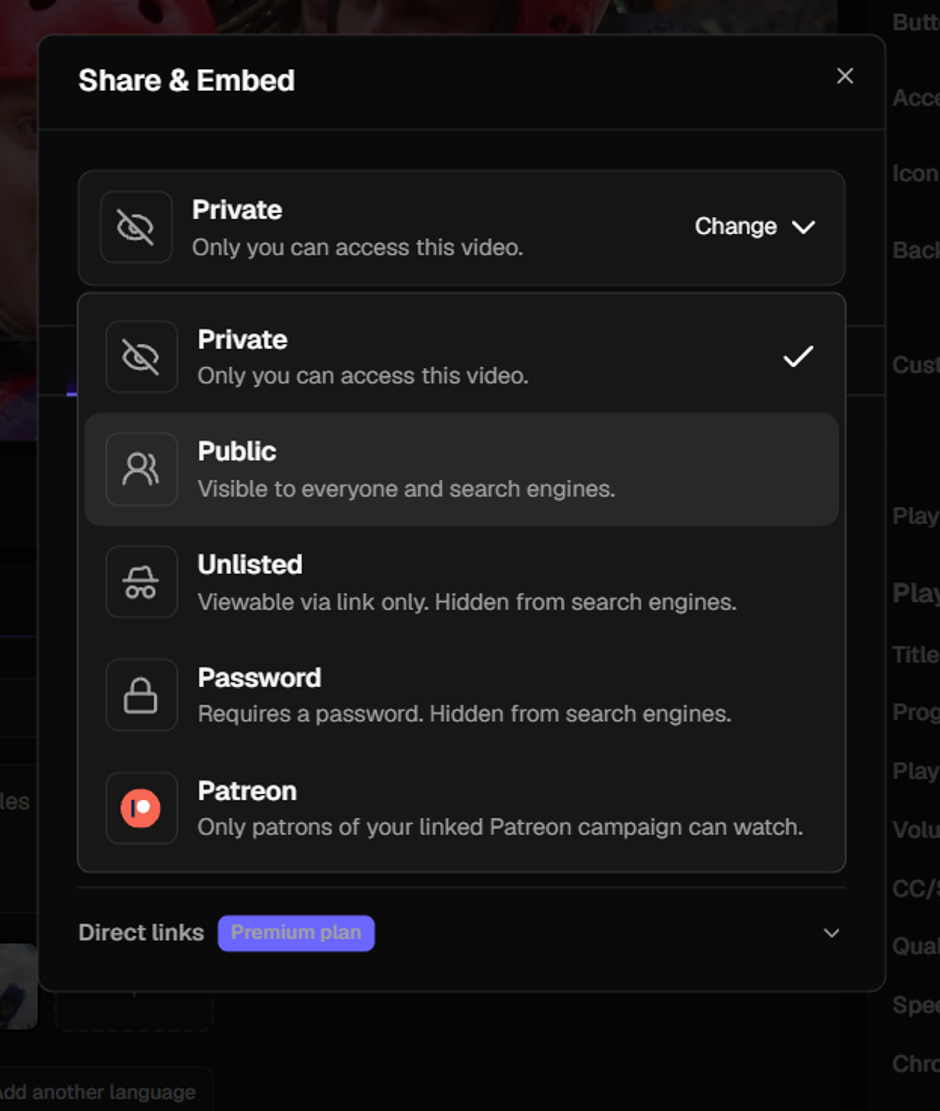
Full detail on visibility and the available embed options is in Embedding videos.
Add the Embed component in Framer
Press I to open the Insert menu, search for Embed , and drag the component onto your canvas.
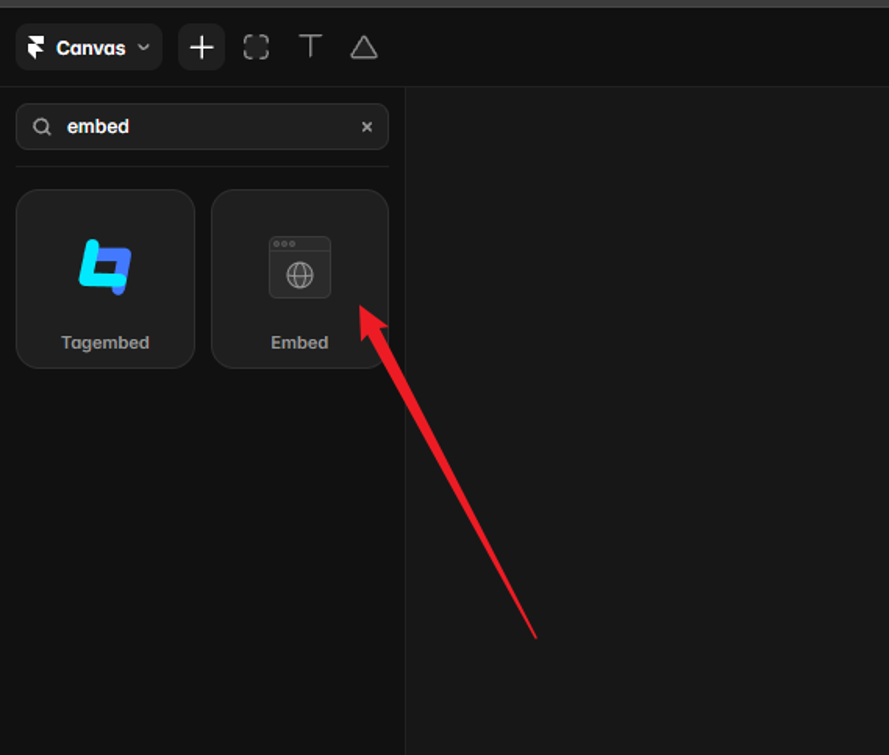
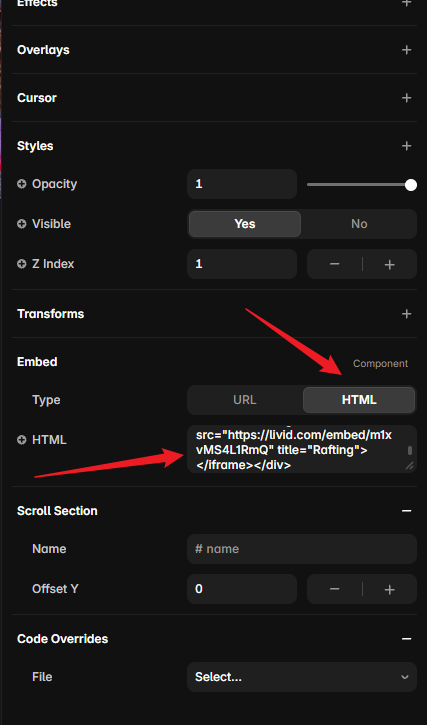
With the component selected, you will see URL and HTML fields in the properties panel on the right. Either will work. The embed code is the quicker of the two.
Method 1: paste the embed code (recommended)
Open the Embed tab of the sharing overlay and leave the size set to Responsive . Set any other embed options you want, such as autoplay, looping or a start time, then press Copy code .
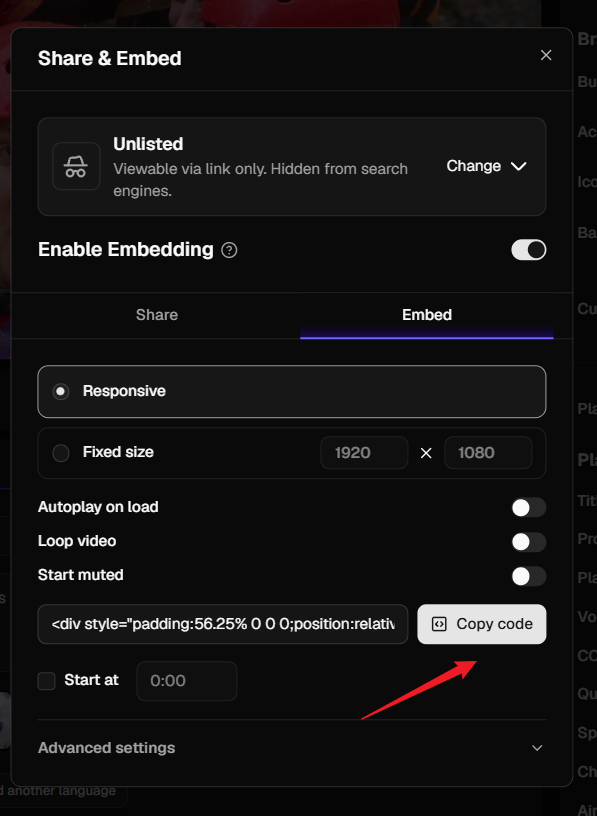
Paste the code straight into the HTML field in Framer. Nothing needs editing.
Method 2: paste the embed link
If you would rather use the URL field, you need the embed link rather than the share link.
Press Copy code as above, paste the code somewhere you can read it, and find the src value inside the <iframe> tag:
https://livid.com/embed/--4Huynn7rSQ
Paste that into the URL field.
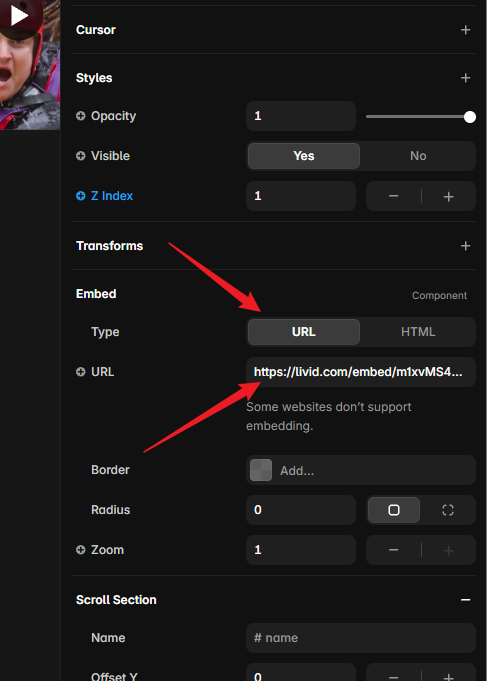
This is not the same as the link you get from Copy link on the Share tab, which Framer will not recognise. It also means your embed options are baked into the link rather than adjustable, which is why method 1 is the easier route.
Set the size
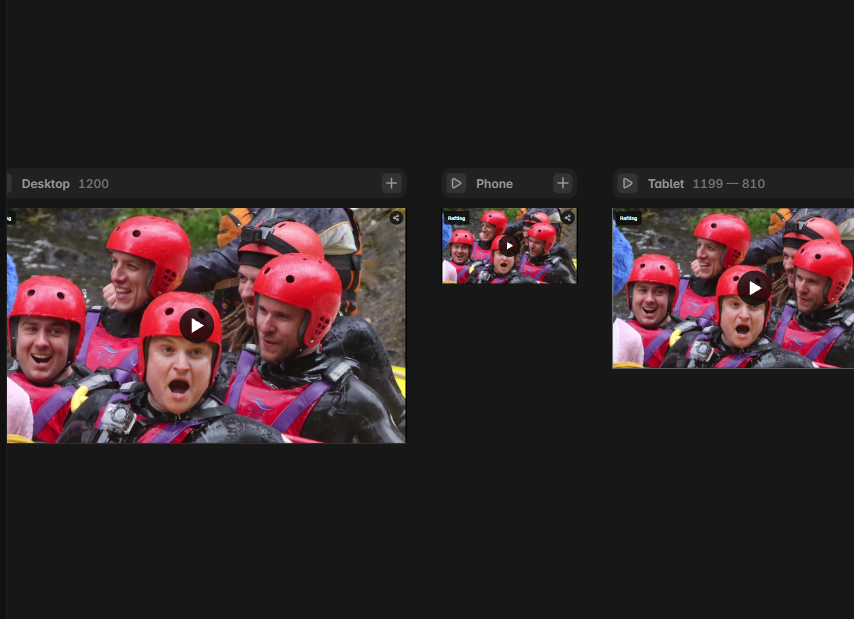
Check your other breakpoints before you publish. The width fills but the height does not follow it, so a height that looks right on desktop will leave black bars above and below the video on tablet and phone. Set a smaller height on each breakpoint.
Frequently asked questions
"This video is private" or nothing loads. Check the video is not set to Private in Livid. Change the visibility and the embed will start working straight away, with no need to re-copy the code.
Can I set an exact size instead? Yes. In the Livid Embed tab, choose Fixed size rather than Responsive and enter the dimensions you want. This gives you a single <iframe> with width and height attributes and no wrapper around it. Paste it into the HTML field and set your Framer layer to Fixed at the same dimensions. The player will then stay that size on every screen, so check how it looks on mobile.
My video has white space above or below it. The layer height does not match the shape of your video. Adjust the fixed height on that breakpoint until the bars disappear, using width divided by 1.78 for a 16:9 video as your starting point.
The video does not autoplay. Most browsers block autoplay unless the video is muted. Turn on Start muted alongside Autoplay on load in your Livid embed options.
I pasted my Livid share link and nothing happened. Framer only recognises YouTube and Vimeo links automatically. For every other video host, including Livid, use the embed code or the embed link as shown above. There is more on why this happens in When a Livid link will not embed as a video player.
I want to control something the embed options do not cover. See Advanced embedding parameters for the full list of what you can add to an embed.