
Player Templates
Pro and Premium plan users can create predefined appearances which can be applied to multiple videos. Any changes to the templates will immediately sync to those videos without needing to be updated individually.
Create a new template
- From the account menu, click
Settingsand then go to thePlayer templatestab.

- Click
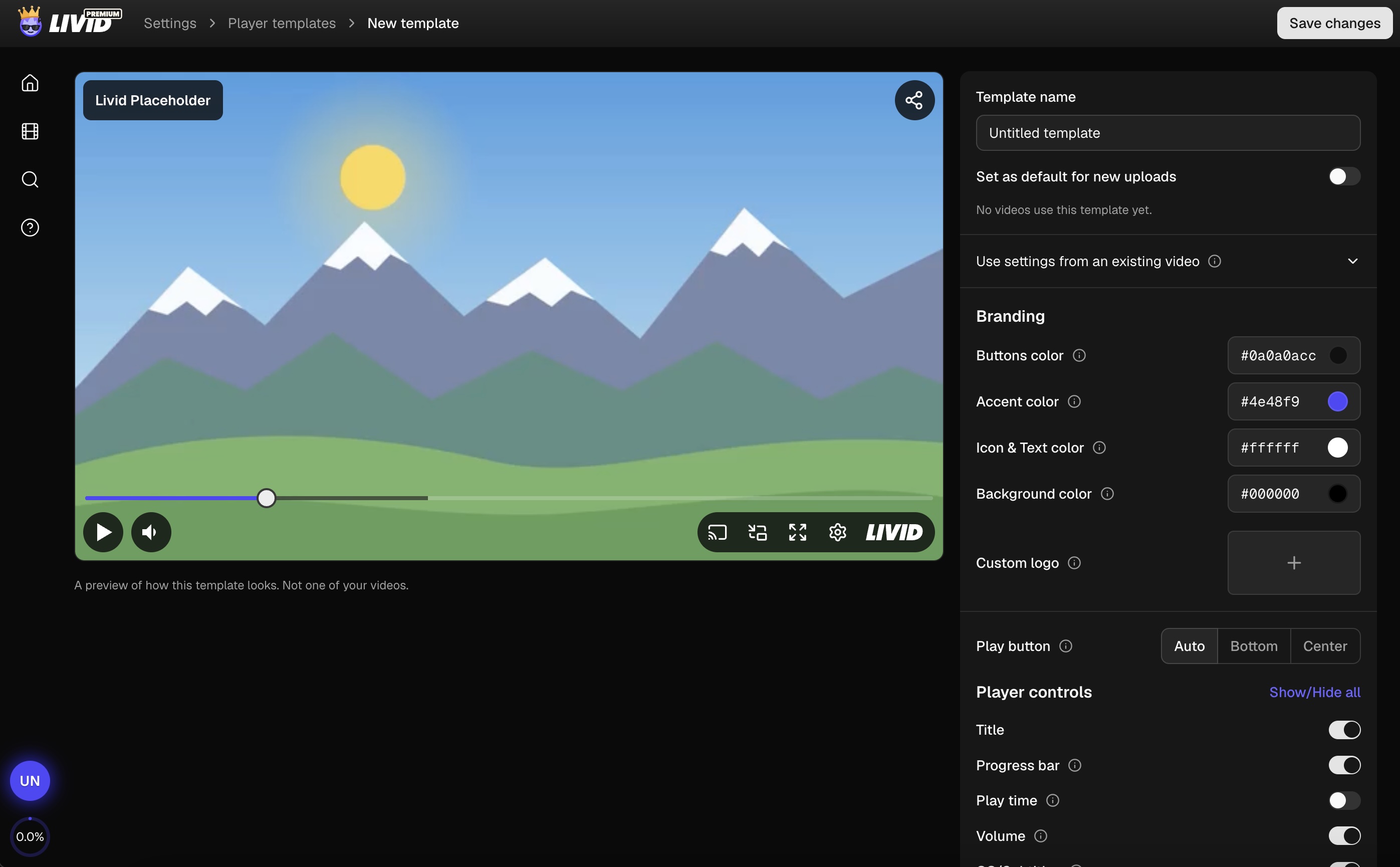
New templateto access the template editor. Here you can make changes to the colors and controls, exactly the same as you would in the video page. When you're finished customizing clickSave changes.
*You might have already customized a video and want to use that as the base for a new template. Click the Use settings from an existing video and select that video, then you can save.
Apply your template to videos
(1) Apply to a specific video
When on a video's page, on the "Appearance" tab click Select a template and choose Apply a template. In the modal you can select any previously created templates and preview how you video will appear. Clicking Apply template will immediately save.
You can also create a new template from the current appearance of a video by clicking Save as a new template.

(2) Bulk apply the template to multiple videos
From your library you can select any number of folders and videos, then click the Appearance button in the bottom bar. From here you can select a template to apply to all videos in a modal matching the one above.
(3) Set as the default for new uploads
On the "Settings" -> "Defaults" page you can select any player template as the default for all future uploads. You can also set a new default from the "Player templates" page in the small dropdown of each template, or when creating a template it can be saved as the new default.

Make changes to a template
(1) Directly on the template
From the Player Templates settings page you can select any existing template, make any updates to the settings, and click Save changes.
(2) From a video
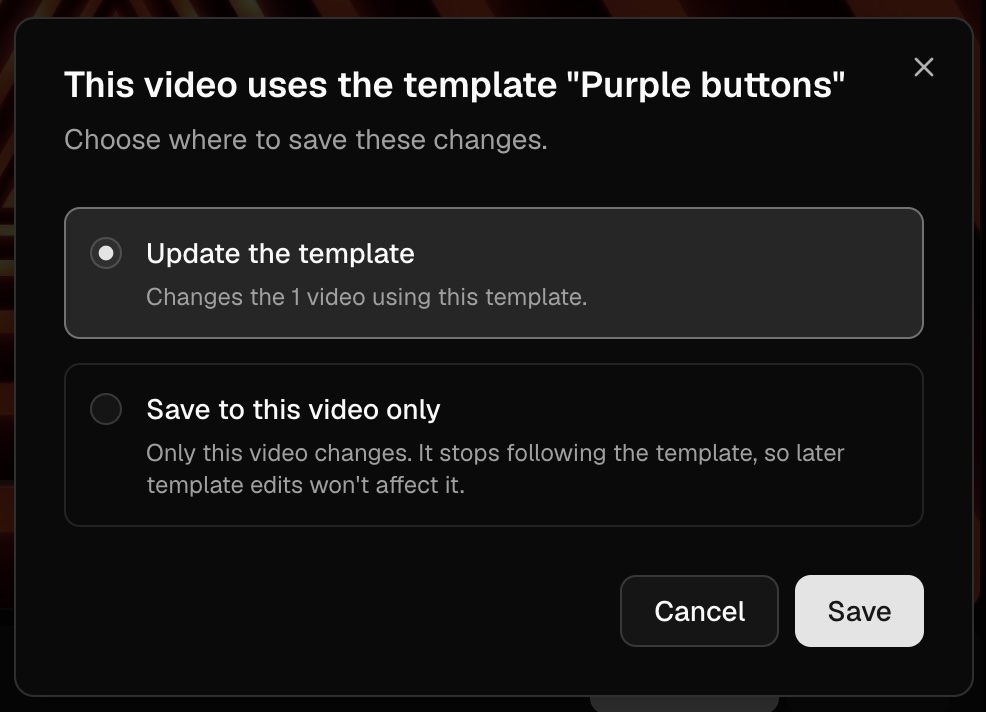
If a video is using a template you may still make changes on the videos "Appearance" tab. After clicking save you'll have 2 options
- Update the template - the changes will sync to all other videos using the template
- Save to this video only - the video will stop being connected to the template and the changes will only apply to it. Any future player template changes will have no effect.
Deleting a template
You can delete a template from the Player Templates settings page.
- If any videos are using the template they will keep the appearance settings the template uses, but any future changes will be specific to that video and not effect any others that had been using that template.
- If the template was the default, there will now be no default template for future uploads