
Showcases
Share multiple videos and folders under a single link with showcases. Here's everything you need to know to get started!
Creating a new showcase
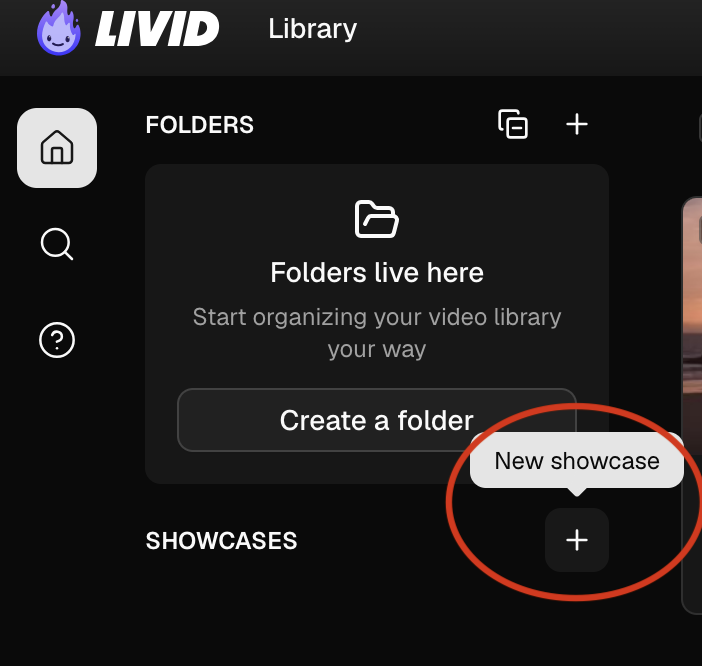
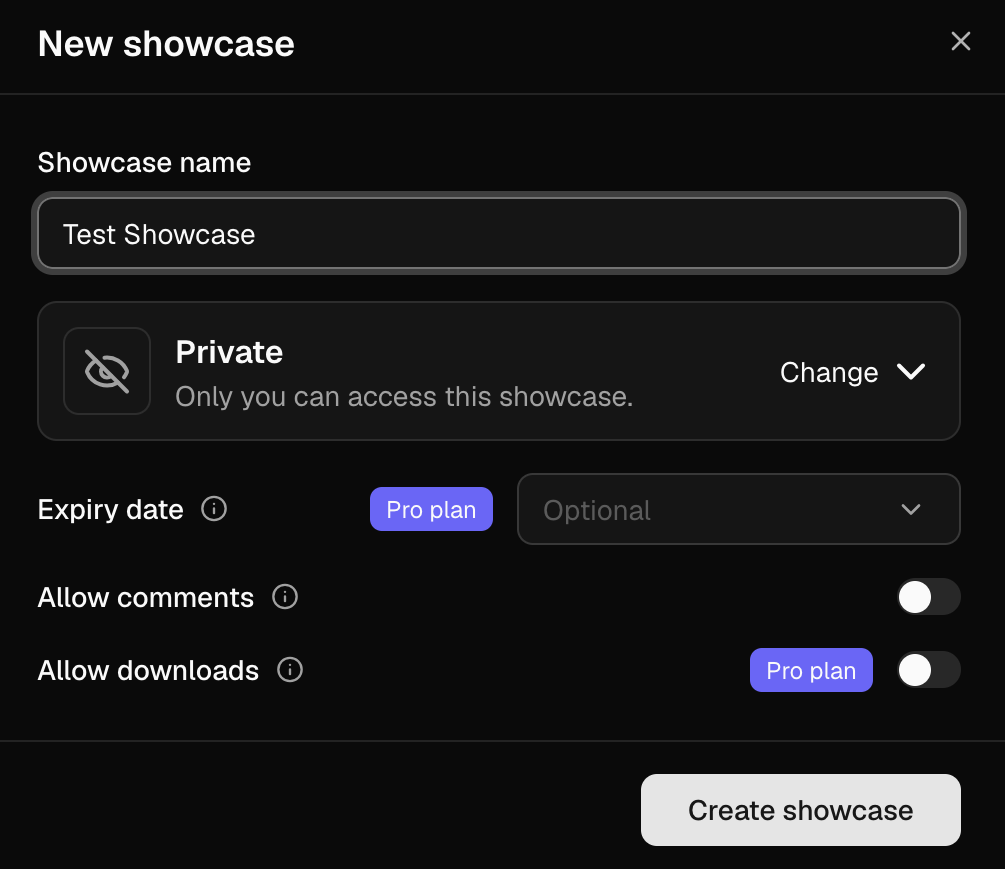
Beneath the Folder section, you'll see the Showcase section. Click the plus icon (New Showcase) to begin. You'll be prompted to enter the name of your showcase, and you'll be able to adjust privacy settings and more.
Important Privacy Note!
Your showcase has access to the same visibility options as videos: Public, unlisted or password protected. You can also set a fixed expiry time for your link. Your showcase's privacy settings are independent of your video's settings - allowing you to set different access across different shared links. Make sure you don't share your showcase until you're ready for the content to be seen!
Customizing and sharing your showcase
Once you've created your showcase, click on it to be taken to the showcase's settings and customization page. Here you can add a description, header image, and more.
At any time, you can click on Preview at the top right to see how your showcase will appear to others- and once you're ready, you can use the "Copy Link" button to copy the showcase URL to your clipboard. Simply share that link with whoever you'd like and they'll be able to view your showcase (according to your privacy settings.) REMEMBER: Your showcase's privacy settings take precedence over your video's privacy settings.


Adding content to your showcase
The most important part of any showcase is adding your amazing work to it. You can do this in two ways.
From your dashboard
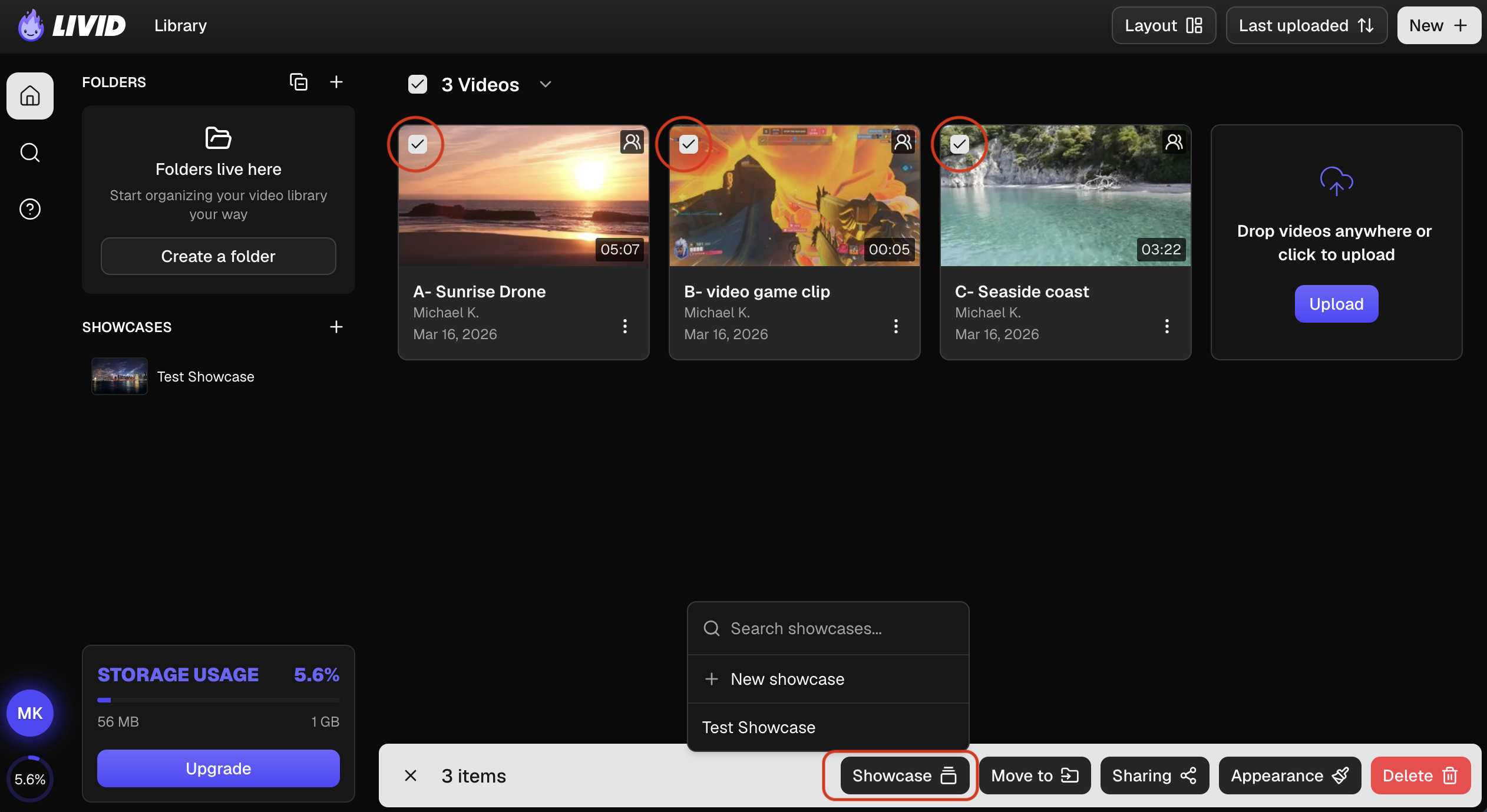
Click the check box on each video and/or folder you want to add to your showcase, then click "Showcase" at the bottom of the screen to open the sub-menu where you'll see all of your showcases listed. Just click where you want to send the videos! (You can also create a new showcase to send them to from this sub-menu.)
From your showcase
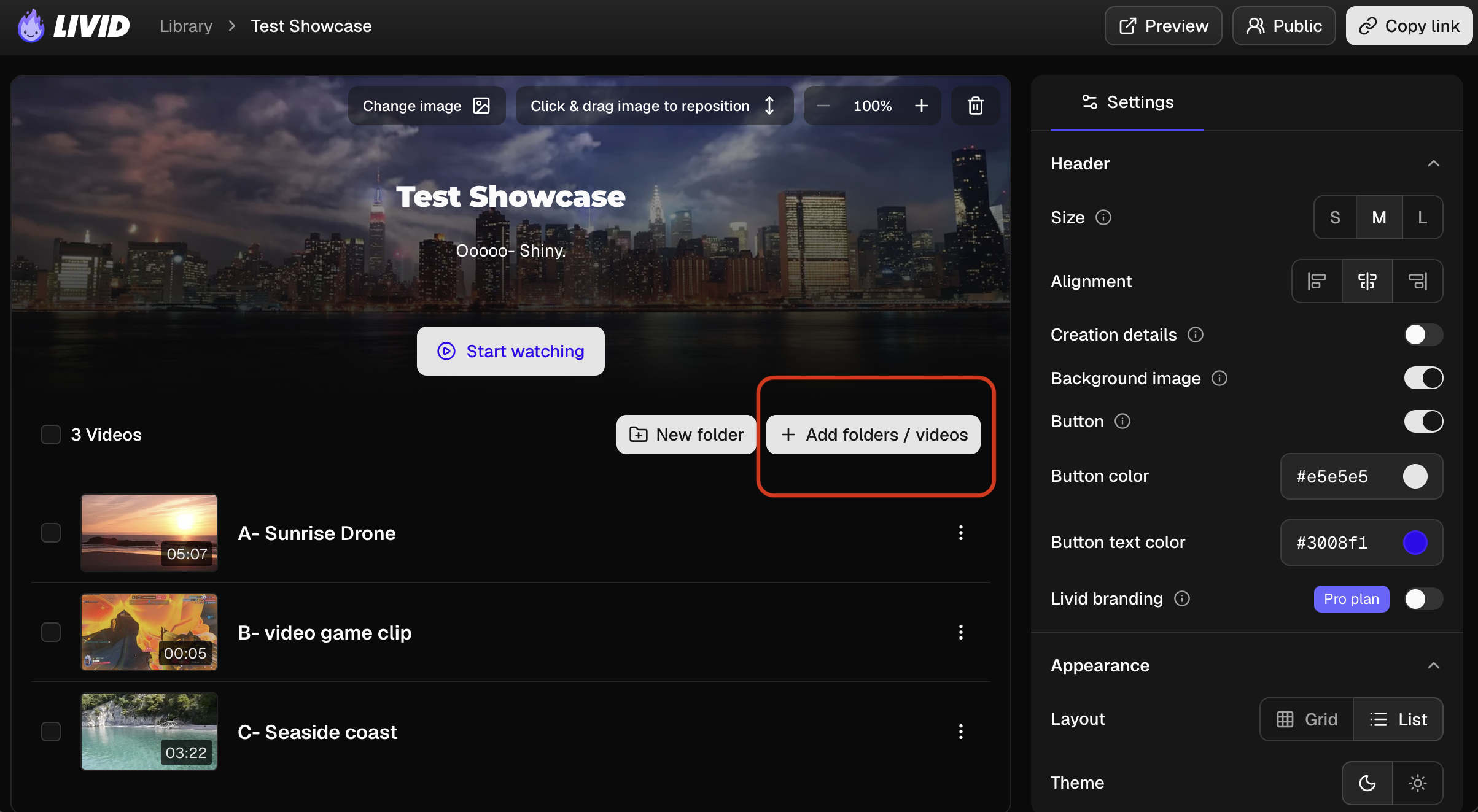
Adding content from within your showcase settings is easy- just click the "add folders / videos" button, seen below. From here you'll be prompted to select which videos and/or folders to add. You can also search for content within this prompt.

That's all you need to know to get started making sleek showcases using Livid!