
Comments
Note: This guide uses a standard desktop format, where comments are to the right of the video. On smaller screens, like on mobile, comments may instead be underneath the video. All of the features are the same.
Enabling Comments
To enable comments on a video, click the Comments button to the right of the video, near the customization options, to be taken to the Comments menu.
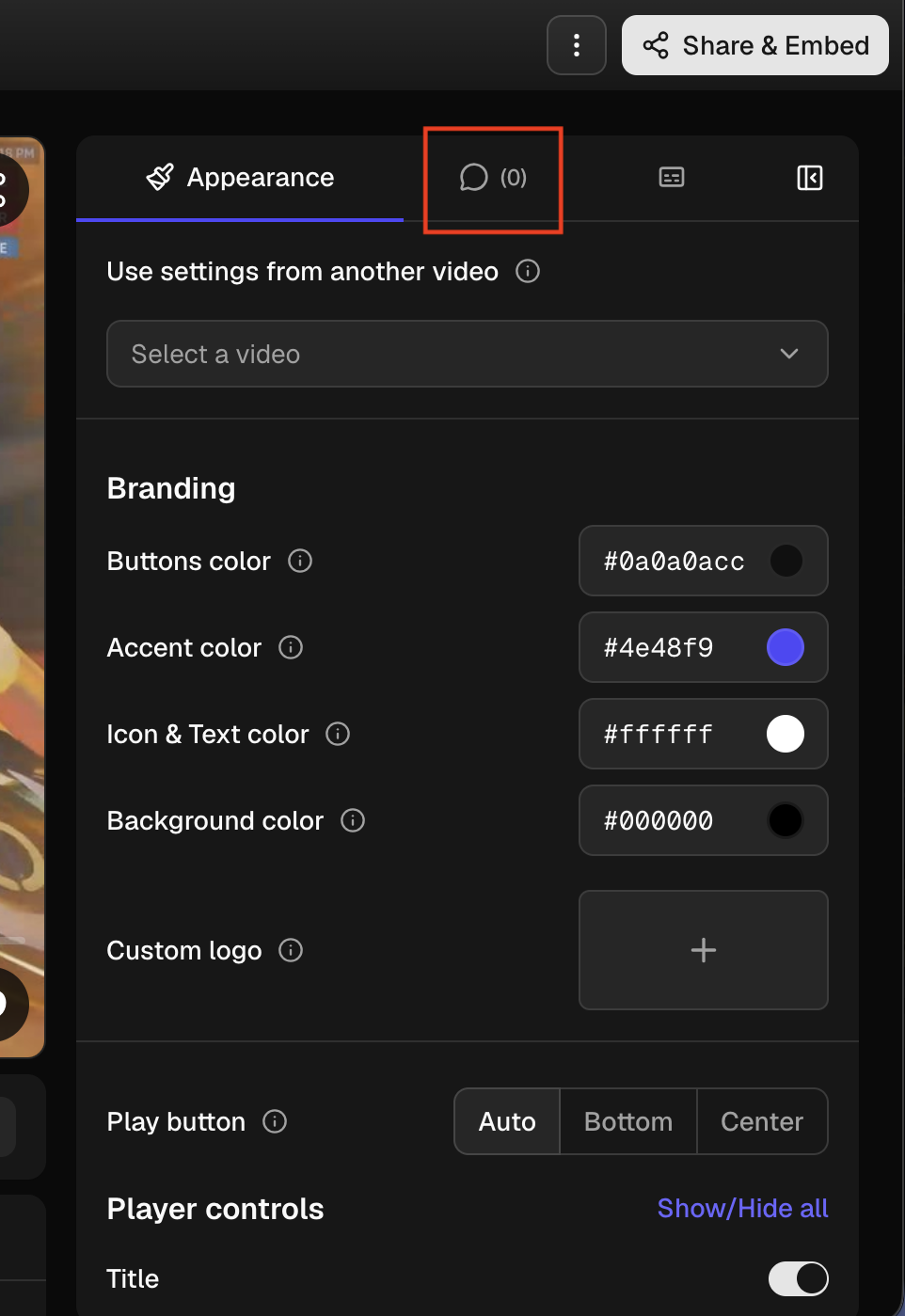
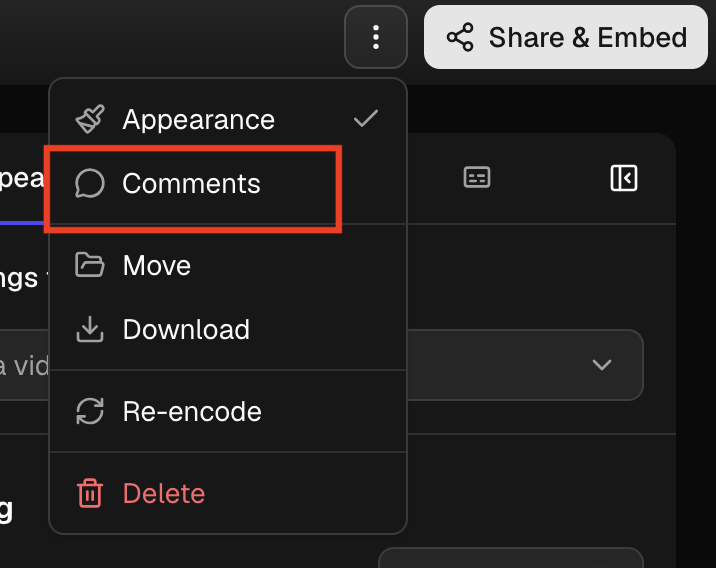
Alternatively, you can click the three dots at the top next to "Share & Embed", and select the Comments option from the drop down menu. Either method will take you to the same place.
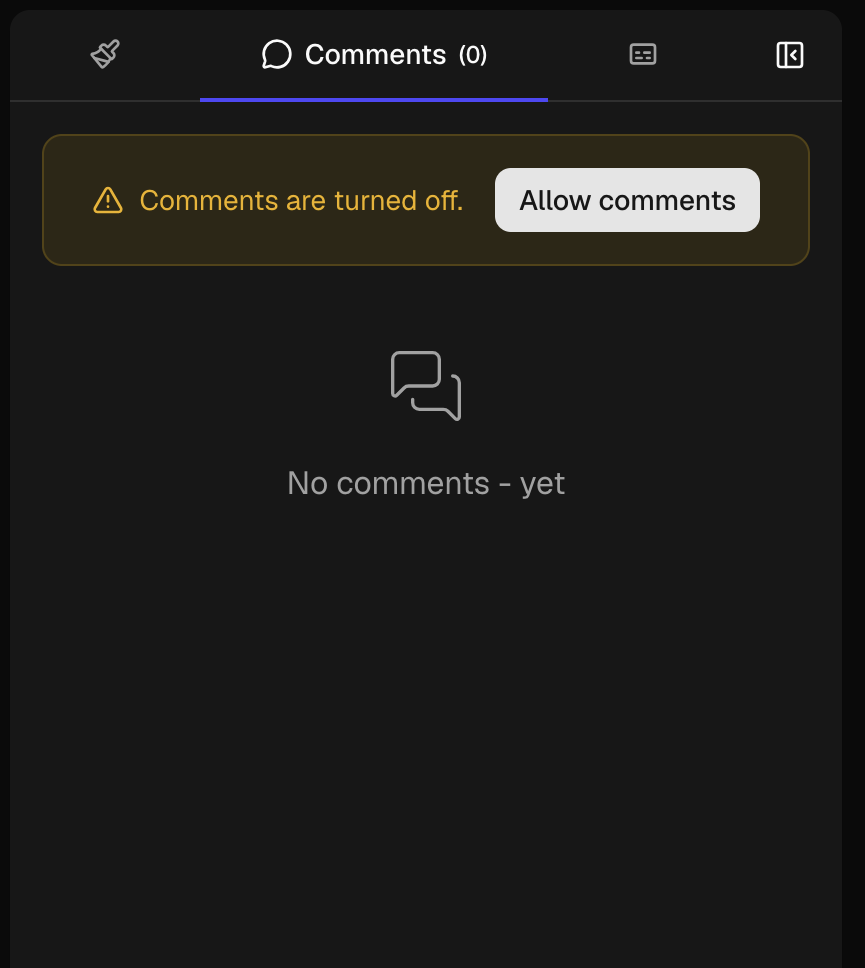
Once at the comments menu, seen below, click "Allow Comments"- and you're all set. Now anyone with access to the video can enter their name and leave a comment!
Leaving Comments
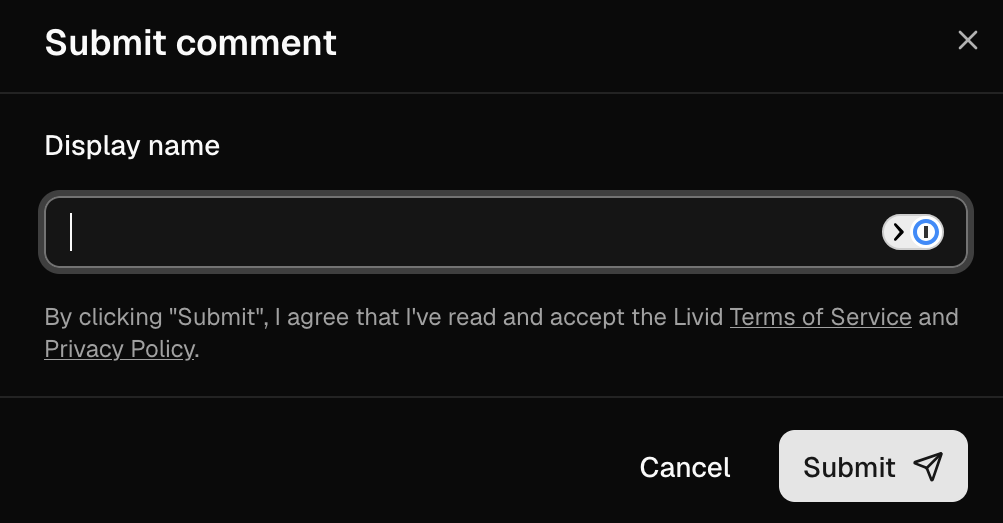
As a viewer you can leave comments on any video that you have access to, as long as the video owner has enabled them. To do so, open the link to the video, and then type in your comment and click the send button. A pop up field will appear asking you to enter your name. Once you do that, you can leave as many comments as you like.
As the owner, you'll see a name field in the comment window. Just enter your name, and type your comment, then you can click send- to either leave your own comments, or reply to existing ones.
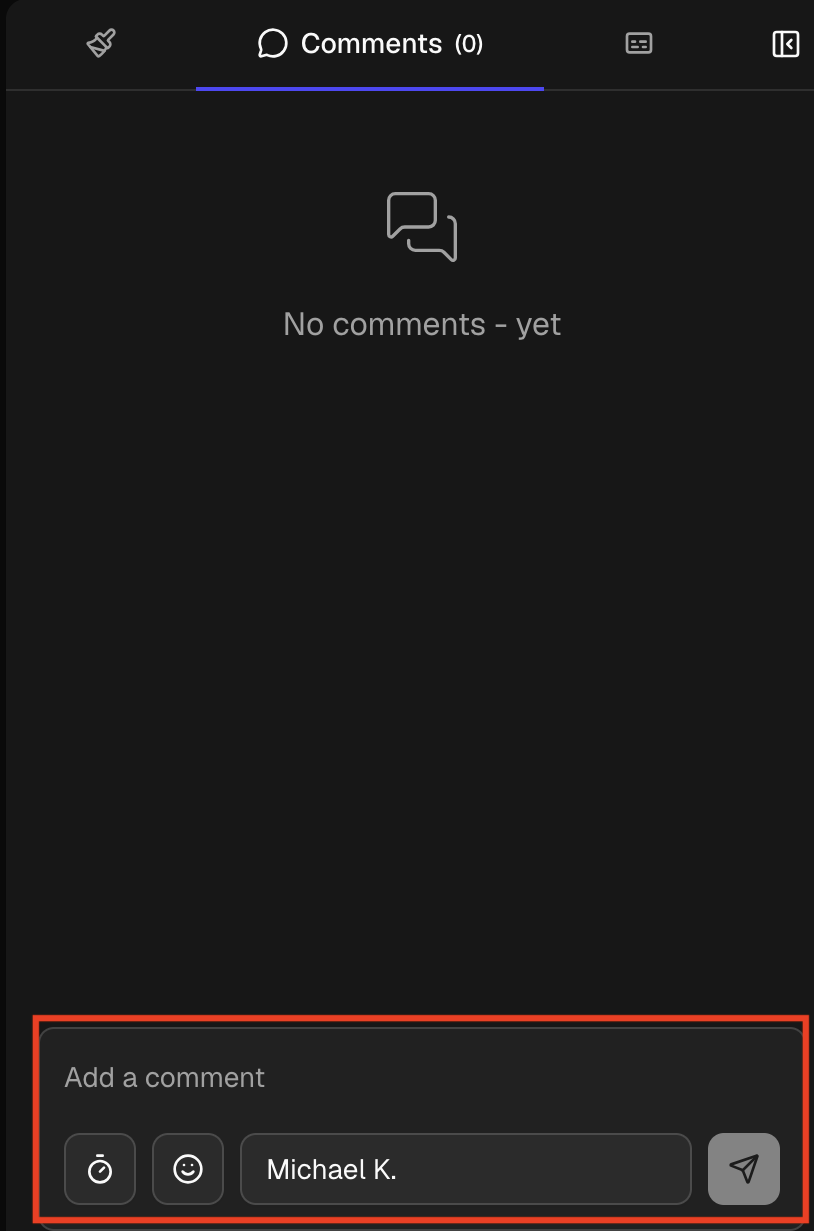
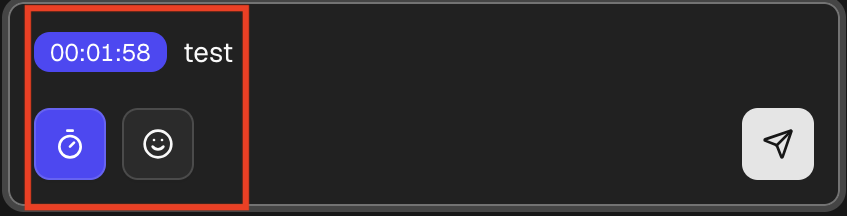
You can click the stopwatch icon in the bottom left corner to include a timestamp with your comment. The timestamp will link to wherever the video is currently paused. With the video paused you can scrub through the video timeline to easily find the exact moment you'd like to reference.
Editing Comments
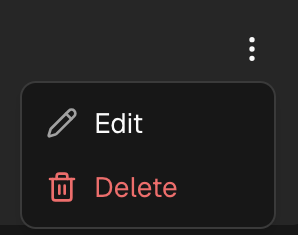
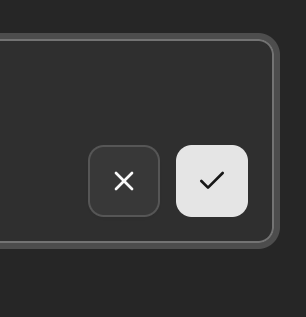
To edit your comment, click the three dots on the comment, then click "edit". Once you've adjusted it to your liking, click the Checkmark icon to save the new edit.
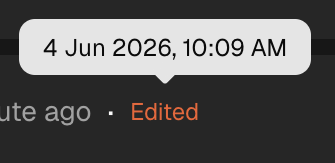
After editing a comment, you'll see "Edited" in red text above it. You can hover over this red text to see when the comment was edited.
Managing Comments
Once you've got comments on your videos, you can resolve them, remove them, delete them, and reply to them.
Resolving Comments
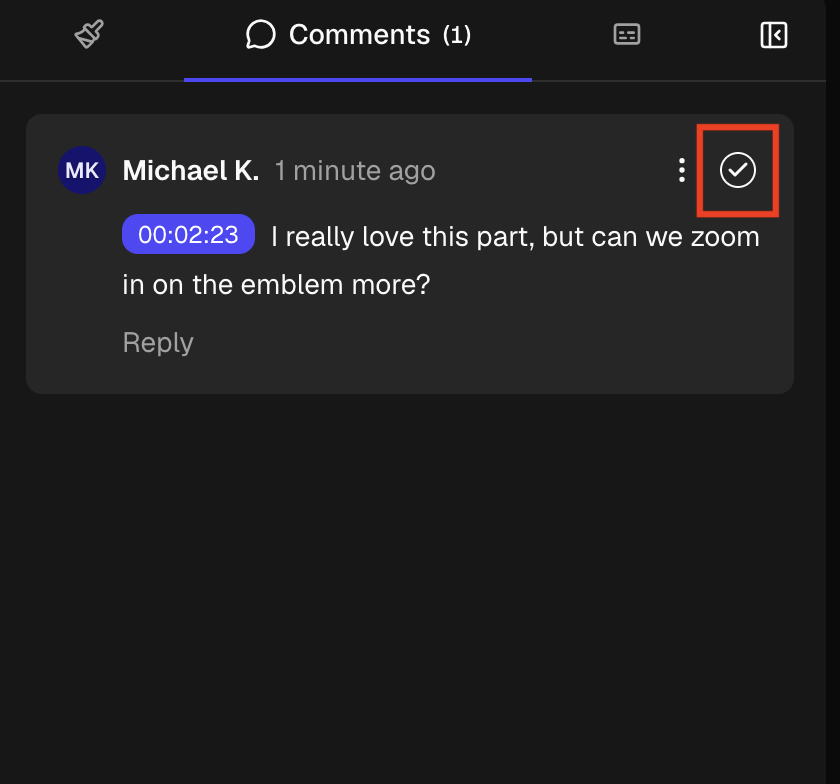
Click the Checkmark button to mark a comment as resolved.
Reporting, Removing, and Deleting Comments
Click the three dots next to the Checkmark to open the drop down menu. From here, you can report, remove, or delete the comment.
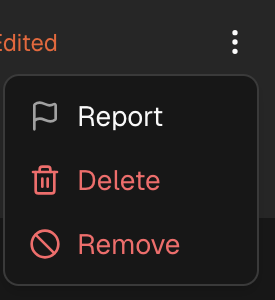
Report will redirect you to a page where you can send the comment, and additional info, to our moderation team for review. Delete will delete the entire comment's text, but leave the comment in view. Remove will delete the content AND remove the comment from view.